How to Back Up Your Ableton Live Projects So You Never Lose a Song 💾
The Song Was Right There.
You finished the best idea you've had in months.
You saved it.
You closed the laptop.
A week later you open it again.
"Media files are missing."
The vocal is gone.
The drums are silent.
Or the hard drive just...
Stopped.
Every producer has a story like this.
You don't need one.
Also read: Why Most Songs Die in the Project Folder (and How to Save Them) 💀
Quick Summary
Saving and backing up are two different jobs:
👉 Save — keeps today's changes
👉 Collect All and Save — puts every sound your song uses inside the project folder
👉 Back up — keeps a copy of that folder somewhere else
One copy is not a backup.
If it only lives on one drive, it can disappear.
1. 💾 Save Often
Press Cmd + S (Mac) or Ctrl + S (Windows).
Again.
And again.
Ableton Live does keep a crash-recovery copy.
But don't trust it with your best idea.
Use Save As (Cmd + Shift + S) to keep versions:
👉 my-song-v1
👉 my-song-v2
👉 my-song-v3-final
If v3 goes wrong, v2 is still there.
Also read: Ableton Live Key Commands: 27 Shortcuts to Supercharge Your Workflow
2. 📦 Collect All and Save
Here's what catches most people.
Your Ableton Live song file doesn't hold the sounds.
It points to them.
That sample in your Downloads folder?
The loop on your desktop?
Move them, and the song can't find them.
The fix:
👉 Go to File › Collect All and Save
👉 Ableton Live copies every sound the song uses into the project folder
Do it when you finish a session.
Do it before you move a project to another computer.
Now the folder holds the whole song.
3. 🗂️ Keep One Home for Your Music
Pick one folder.
Put every project inside it.
Name each one so you can find it in a year:
👉 2026-10-22 dub techno idea
Not:
👉 Untitled Project 47
Messy folders lose songs.
Not because the files are gone.
Because you can't find them.
 ⭐️ Download my Free Music Production Guides or take my free Ableton Live Course ⭐️
4. ☁️ The 3-2-1 Backup Rule
Photographers and studios have used this rule for years:
👉 3 copies of your music
👉 2 different kinds of storage, like your computer and an external drive
👉 1 copy somewhere else, like a cloud folder
The Mac has Time Machine built in.
Windows has File History.
Plug in an external drive and turn it on.
Then add a cloud folder for the projects you care about most.
Also read: How Do I Save a Project in My DAW?
⚔️ Save vs. Collect vs. Back Up
| Save | Collect All and Save | Back Up | |
|---|---|---|---|
| What it does | Keeps today's changes | Copies every sound into the folder | Copies the folder somewhere else |
| How often | Every few minutes | End of each session | Every day or automatically |
| Protects you from | A crash | Missing files | A dead or lost computer |
⚖️ Too Much vs. Too Little
Too much...
And you have 400 copies of the same song.
Your drive fills up.
You can't tell which one is the real one.
Too little...
And one spilled coffee takes a year of music with it.
Just right is a simple habit you don't have to think about.
🥷 The End-of-Session Checklist
Step 1
Save a new version with Save As: v2, v3, v4.
Step 2
File › Collect All and Save.
Step 3
Check that your backup ran.
Two minutes.
Every session.
Your songs are worth two minutes.
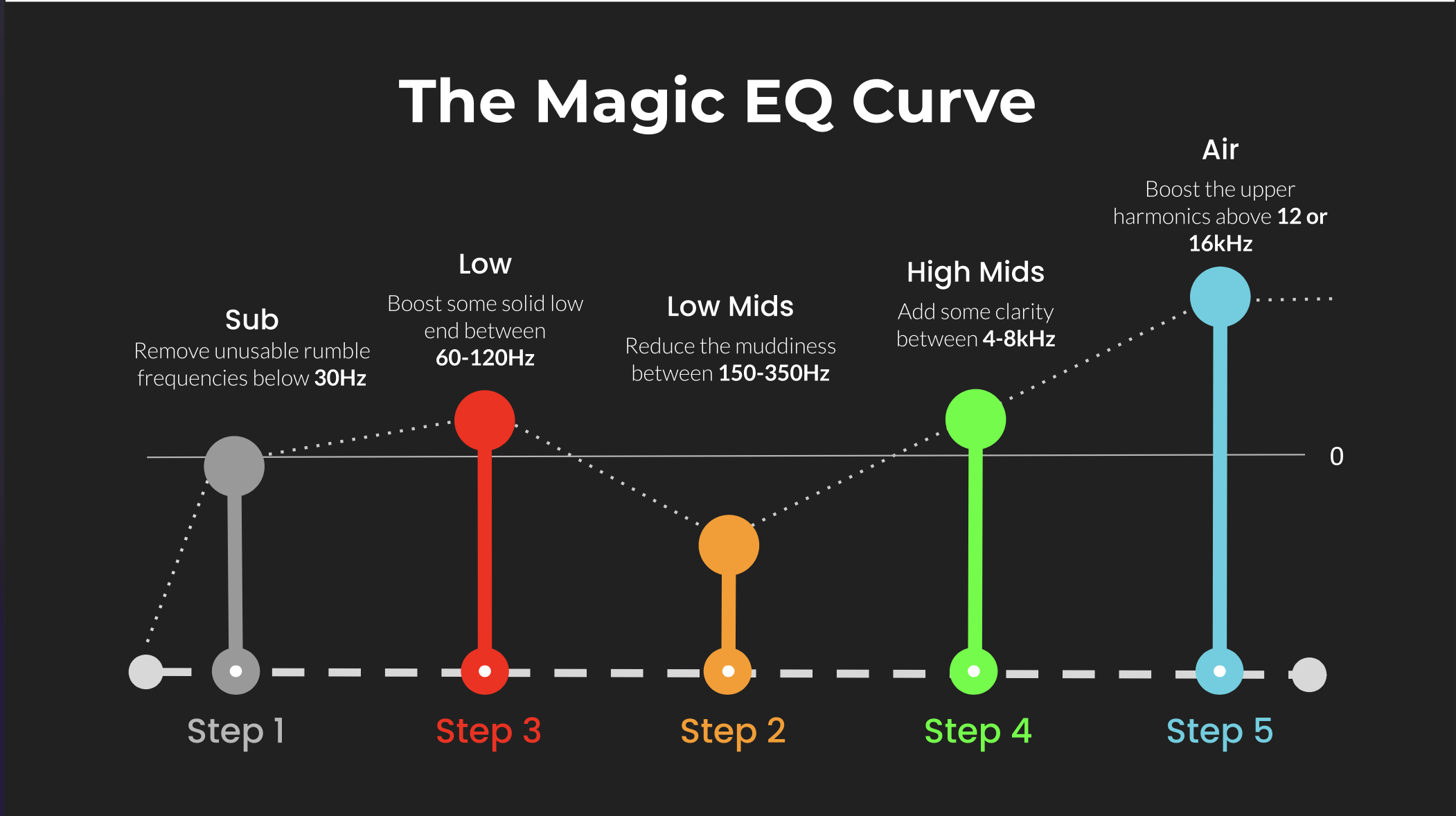 ⭐️ Download my Free Magic EQ settings Guide ⭐️

⭐️ Download my Free Magic Reverb settings Guide ⭐️
#protools #daw #homestudio #recordingschool #recording #musicproduction
Also read:
How to Start Your Own Online Business Teaching Music

Hey, I'm Futch - Music Production Coach and Ableton Certified Trainer

Learn how to make your first song and beat in Ableton Live with my
FREE 90-minute Ableton Live course
I've been teaching audio engineering and music production for 35 years.⭐️
Check out my new online music production program: Music Production Ninja...